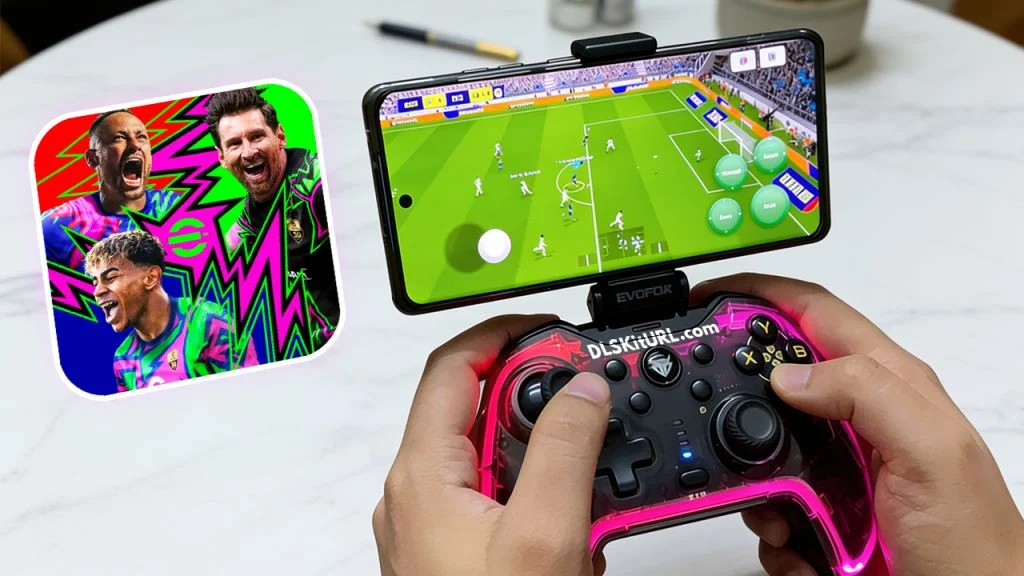
eFootball Mobile now allows players to enjoy the game using a Bluetooth controller on both Android and iOS devices. The game has become now more competitive as the physical gamepad completely transforms the experience gaining a massive competitive edge in division push. Konami has finally delivered the feature we have all been waiting for, Official External Controller Support for eFootball Mobile.
This is a comprehensive guide; on how you can take advantage of this feature and connect your controller and flawlessly play eFootball Mobile on your Mobile/iPad devices.
Joysticks make the player movement, passing and shooting accuracy more precise. Whether you’re playing Exhibition mode or vs AI mode, using a controller can significantly improve your gameplay efficiency. The buttons also help you control the power and power of the pass or shoot.
Play eFootball Mobile with a Controller
Before the recent update Mobile football fans had to rely on third-party keymapping apps – which often risked account bans just to use a physical controller. Konami recently changed the game by recognizing the external controller support for certain game modes.
Konami now officially supports external controllers in eFootball Mobile on compatible Android and iOS devices. Once your controller is connected via Bluetooth, the game automatically detects it. You don’t need to enable any additional settings or install third-party applications.
As of currently only following controllers are supported-
- DualSense® wireless controller
- DUALSHOCK®4 wireless controller
- XBOX Wireless Controller
For now the wired USB-C or Lightning connectors controllers are not an option, it is highly recommended to use a wireless Bluetooth controller.
How to Connect a Controller to eFootball Mobile?
Step 1: Turn on Bluetooth
Make sure you have a compatible Bluetooth controller and enable the Bluetooth on your Android iOS device. For an Xbox controller, hold the small Pair button on top until the Xbox logo flashes rapidly.
Step 2: Pair Your Controller
Press the pairing button and open the Bluetooth settings of your device. Now, locate your controller’s name and connect your controller to your device.
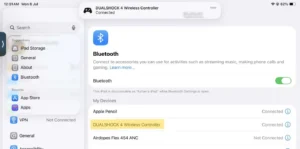
Step 3: Launch eFootball Mobile
Open eFootball Mobile normally. There are no controller settings that need to be enabled manually. The controller wont work while you are in the menu section, it only works while playing the game.
Why Isn’t My Controller Working in the Menu?
Please look out if your controller is compatible with your device and is among the type mentioned in the abovementioned list.
At the time of writing, the controller primarily functions during gameplay. The menus, team management screens, and settings often still require touchscreen input. So don’t worry, if it doesn’t work at first. Once the match begins and the ball is in play, controller support activates automatically.
Compared to games like Dream League Soccer, where the controller also works throughout the menu interface, eFootball Mobile currently limits controller support mainly to in-game actions.
Why play eFootball Mobile with a Controller?
- Better Player Control: Analog joysticks provide much smoother movement than virtual joysticks. The grip you get from a physical controller is unmatched. This makes dribbling, changing direction, and controlling first touches more natural.
- Faster and More Accurate Passing: Physical buttons make it easier to execute quick one-touch passes and control the power of the pass and shoot.
- More Comfort: While playing the game for long sessions, holding a controller reduces finger fatigue caused by constantly tapping the screen. It gives a lot of comfort in long playing hours.
- Precision and 360-Degree Dribbling Control: The physical analog joystick removes any directional constraints gives the player a true 360-degree precision.
- Zero Screen Obstruction: While using the virtual joystick, your thumbs naturally block a significant portion of the lower corners of your screen. Using a physical gamepad allows you to spot open spaces, track overlapping wingers, and view defensive holes much faster, especially when you are playing with far camera angles.
Frequently Asked Questions (FAQs)
Does eFootball Mobile officially support controllers?
Yes. Konami has added official controller support for compatible Android and iOS devices. However, only limited controllers are supported at this time.
Can I use a PS5 controller?
Yes. The DualSense controller works on compatible Android phones, iPhones, and iPads. It is not mandatory to be a PS5 Controller, the controller only needs to be a DualSense Controller.
The following controllers are currently supported in the game:
- DualSense® wireless controller
- DUALSHOCK®4 wireless controller
- XBOX Wireless Controller
Can I use an Xbox controller?
Yes. Xbox Wireless Controllers are also supported on compatible devices. similarly in line with PS5 controller as above.
Why doesn’t my controller work in the menus?
Currently, controller support is mostly limited to gameplay. Menu navigation still relies on touchscreen controls.
Conclusion
The addition of controller support is one of the best updates given by Konami in the recent times. Although it is currently supported only on selected game modes. But it given conclusive base of probability of being supported in all the other game modes.
Just pair your controller and enjoy the game. No need of any complicated setup or keymapping. It is as easy as that.
DLS kits
Deseo la camiseta y elecudo de pesege y suropa
i wish they add the division matches also
DLS